
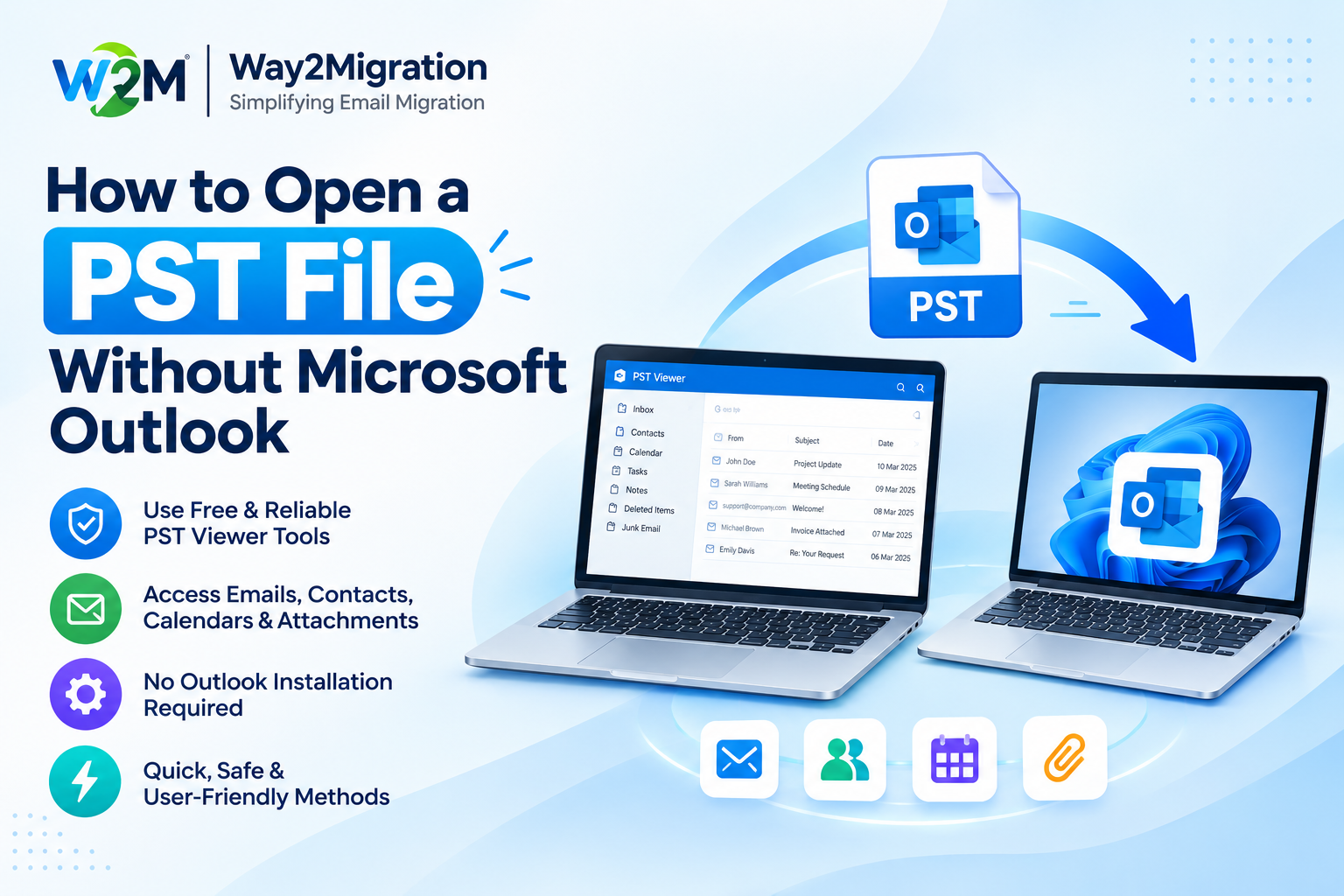
Summary: PST files contain important Outlook mailbox data such as emails, attachments, contacts, calendars, and other items. But accessing this information can be difficult when Microsoft Outlook is not installed or available. Way2Migration provides practical solutions for users who need to view, access, or convert PST data without depending on Outlook. In this guide, we will discuss five different methods to open a PST file without Microsoft Outlook and explain which option is suitable for different situations.
Why Open a PST File Without Microsoft Outlook?
A PST file is commonly created by Microsoft Outlook to store mailbox information locally. It can contain years of emails, attachments, contacts, calendar entries, tasks, and other Outlook items.
However, having a PST file does not always mean that Microsoft Outlook is available on the computer. You may have received an old PST backup, changed your email application, replaced your computer, or simply want to inspect the contents of the file without setting up Outlook.
Some common situations include:
- You have an old Outlook PST backup.
- Microsoft Outlook is not installed on your computer.
- You want to inspect archived emails before migration.
- You need to access attachments stored inside a PST.
- You have moved to another email platform.
- You want to extract specific emails from an old mailbox.
- You need to view PST data without configuring an Outlook account.
Since PST is a Microsoft Outlook data format, you need a compatible application or conversion method to access its contents when Outlook is unavailable.
Method 1: Use Way2Migration PST Viewer Tool to Open PST Without Outlook
One of the easiest ways to access a PST file without Microsoft Outlook is by using a dedicated PST viewer.
Way2Migration PST Viewer Tool is designed to help users browse PST mailbox data without relying on the Outlook application. Instead of configuring an email account, users can load the PST file and examine the information stored inside it.
A dedicated viewer can be particularly useful when your requirement is simply to read and inspect old mailbox data rather than migrate the entire mailbox.
Steps to Open PST File Without Outlook Using Way2Migration
- Download and install the Way2Migration PST Viewer Tool.
- Launch the application on your Windows computer.
- Select the option to add or browse for a PST file.
- Navigate to the folder where your PST file is stored.
- Select the required PST file and load it into the application.
- Allow the software to scan the mailbox structure.
- Browse through folders such as Inbox, Sent Items, Drafts, and other available folders.
- Select an email to preview its contents and check the associated information.
This method is suitable when you want a straightforward way to inspect PST data without installing or configuring Microsoft Outlook.
Method 2: Convert PST File Into Another Format
If you do not need to keep your data in PST format, another option is to convert the mailbox into a more accessible format.
With a suitable PST conversion tool, emails and other mailbox items can be converted or exported according to the required output format.
For example, users may need to convert PST emails to PDF for documentation, EML for use with compatible email applications, or other supported formats for easier access.
Steps to Convert PST Data Without Outlook
- Install the Way2Migration PST Converter Tool.
- Add the PST file you want to process.
- Allow the application to scan the mailbox.
- Select the folders or mailbox items you want to convert.
- Choose the required output format.
- Select a destination location for the converted files.
- Start the conversion process.
- Open the converted data using the appropriate application.
Conversion is a useful choice when you need to extract, share, archive, or reuse PST data in another format.
Why Convert a PST File?
PST conversion can be helpful when:
- You need to save emails as PDF files.
- You want to extract individual messages.
- You need to access emails through another application.
- You want to create a separate archive.
- You are preparing mailbox data for migration.
Always maintain a backup of the original PST before performing any conversion process.
Method 3: Import PST Data Into Google Workspace
Users who have moved from Microsoft Outlook to Google Workspace may want to transfer their old PST mailbox data to their Google account.
Instead of viewing the PST file directly, the data can be migrated into the destination mailbox using an appropriate migration process.
Steps to Move PST Data to Google Workspace
- Sign in to the Google Workspace account.
- Check the available mailbox migration options.
- Select the appropriate migration method for PST data.
- Provide the required PST files or their storage location.
- Select the mailbox information you want to transfer.
- Start the migration process.
- Wait for the transfer to finish.
- Open the destination Google Workspace mailbox and verify the migrated emails.
This method is more appropriate for users who want to continue accessing their old Outlook emails through Google Workspace instead of keeping the data in a local PST file.
The migration process can vary depending on the Google Workspace configuration and the amount of mailbox data involved.
Method 4: Use Mozilla Thunderbird
Mozilla Thunderbird is another email client that users may consider when moving away from Outlook.
However, Thunderbird does not provide native PST support in the same way Microsoft Outlook does. Therefore, additional tools or a suitable conversion process may be required before PST data can be used with Thunderbird.
General Process for Using PST Data With Thunderbird
- Download and install Mozilla Thunderbird.
- Prepare the PST data using a compatible PST conversion or export utility.
- Convert the required emails into a format supported by Thunderbird.
- Open Thunderbird and configure the required mailbox.
- Import the converted email data.
- Browse the imported messages and folders.
This method can be useful for users who have decided to use Thunderbird as their primary email application.
However, it may involve additional steps compared with using a dedicated PST viewer.
Method 5: Use an Online PST Viewer
An online PST viewer can be another option if you need to check a PST file occasionally and do not want to install desktop software.
These services generally allow users to upload a PST file through a browser and then preview the available mailbox information.
Steps to View PST Online
- Find a reputable online PST viewer.
- Open the service in your web browser.
- Follow the instructions to upload your PST file.
- Wait while the file is processed.
- Browse the available folders and mailbox items.
- Preview the required emails or other supported information.
Is It Safe to Upload a PST Online?
You should be careful before uploading a PST file to an online service.
PST files may contain private emails, business correspondence, contact information, documents, and confidential attachments. Once the file is uploaded to a third-party server, you need to consider how that service handles and stores your information.
For sensitive or confidential mailbox data, using a local desktop application can be a more appropriate option.
What If the PST File Is Corrupted?
Sometimes a PST file cannot be opened because the file has become damaged or corrupted.
Common signs include:
- The PST file does not load.
- Some folders appear empty.
- Emails cannot be opened.
- Attachments are missing.
- An error appears while accessing the file.
- The application stops responding while scanning the PST.
If you experience these problems, the issue may be related to the PST file itself rather than the absence of Microsoft Outlook.
Before attempting any repair or recovery process, create a backup copy of the original PST. If the mailbox contains important business or personal information, avoid making changes to your only copy.
A suitable PST repair or recovery solution may be required to restore access to damaged mailbox data.
Which Method Is Best to Open PST Without Outlook?
The appropriate method depends on what you want to do with your PST file.
| Requirement | Suitable Method |
| Read PST emails without Outlook | PST Viewer |
| Browse old mailbox folders | PST Viewer |
| Save emails in another format | PST Converter |
| Move emails to Google Workspace | Migration |
| Use PST data with Thunderbird | Conversion + Thunderbird |
| Quickly inspect a non-sensitive PST | Online PST Viewer |
| Access damaged PST data | PST Repair/Recovery |
If you only want to open and read a PST file without Microsoft Outlook, using a dedicated PST viewer is generally the most direct approach.
If you want to move the mailbox to another platform or save the information in a different format, conversion or migration may be more suitable.
Conclusion
Opening a PST file does not always require Microsoft Outlook. Users can choose from several alternatives depending on whether they want to view, convert, migrate, or reuse their mailbox data.
A dedicated PST viewer such as Way2Migration PST Viewer Tool can be useful when the main requirement is to browse emails, attachments, and other PST information without configuring Outlook. For users who need the data in another format, a PST converter can provide a more suitable approach.
Migration can be considered when moving from Outlook to platforms such as Google Workspace, while Thunderbird may be useful for users who have switched to an alternative desktop email client.
Before working with an important PST file, always keep a backup of the original data. For confidential mailbox information, avoid uploading the PST to unknown online services.


