
Accidentally deleting an important email from Outlook can be frustrating, especially when the message contains important business information, attachments, invoices, or personal records. Fortunately, deleting an email does not always mean that it has been lost forever.
Microsoft Outlook provides several recovery options that may help you restore deleted messages. Depending on how and when the email was deleted, you may be able to recover it from the Deleted Items folder, the Recoverable Items folder, an Outlook data file backup, or another available backup.
In this guide, we will explain how to recover permanently deleted emails in Outlook using different methods. We will also discuss what to do when Outlook’s built-in recovery options cannot find the required emails.
Can You Recover Permanently Deleted Emails in Outlook?
Yes, in some situations, permanently deleted Outlook emails can still be recovered.
When an email is deleted normally, Outlook generally moves it to the Deleted Items folder instead of removing it immediately. If you empty that folder or delete an email from it, the message may become available through Outlook’s Recoverable Items feature for a limited period, depending on your account type and administrator settings.
However, recovery is not guaranteed in every situation. If an email has been permanently removed and there is no available recovery folder or backup, specialized Outlook recovery software may be required.
The sooner you attempt recovery, the better your chances are.
Method 1: Recover Deleted Emails from the Deleted Items Folder
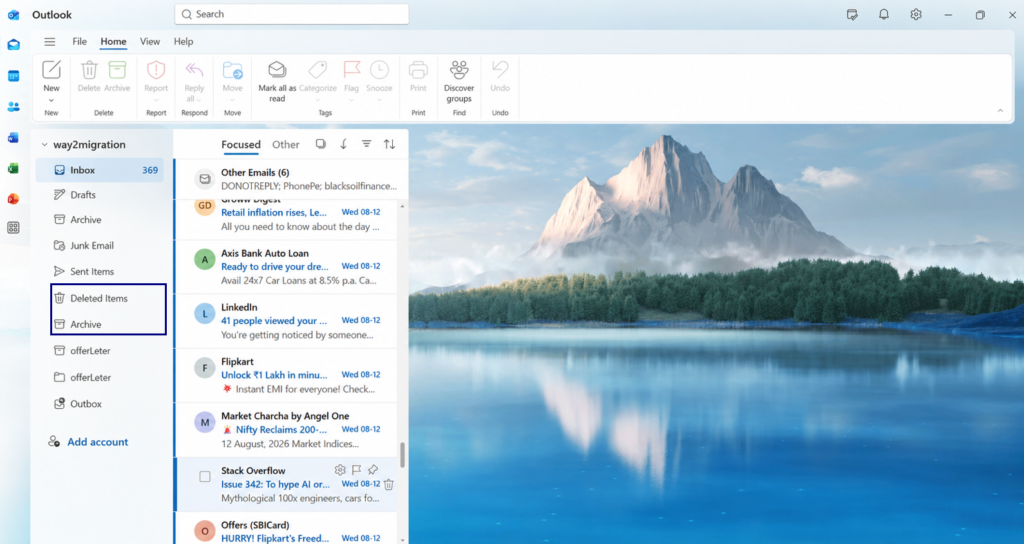
The easiest way to recover an Outlook email is to check the Deleted Items folder.
This method works when you have deleted an email recently and it is still present in the folder.
Steps to Recover an Email from Deleted Items
- Open Microsoft Outlook and sign in to your account.
- From the folder list, open Deleted Items.
- Browse through the messages or use the search option to locate the email.
- Right-click the email you want to restore.
- Select Move and choose the destination folder.
- Move the message to your Inbox or another preferred folder.
Once moved, open the destination folder and verify that the email and its attachments are available.
What If the Email Is Not in Deleted Items?
If you cannot find the message in Deleted Items, don’t assume that it has been permanently lost. Outlook may have moved it to another recovery location.
The next option is to check Recoverable Items.
Method 2: Recover Permanently Deleted Emails Using Recoverable Items
Outlook provides a recovery feature for messages that are no longer visible in the Deleted Items folder.
The exact recovery options can differ depending on whether you are using Outlook.com, Microsoft 365, Exchange, or the Outlook desktop application.
Steps in Outlook on the Web
- Sign in to your Outlook account.
- Open the Deleted Items folder.
- Look for the option related to recovering items deleted from this folder.
- Open the list of recoverable messages.
- Select the email you want to restore.
- Click Restore.
After recovery, check the appropriate folder for the restored message.
Steps in Outlook Desktop
In supported Outlook configurations, you can access the recovery feature from the Deleted Items folder.
- Launch Outlook.
- Open Deleted Items.
- Look for Recover Deleted Items under the Folder menu or ribbon.
- Review the available deleted messages.
- Select the required email.
- Click Restore Selected Items or the equivalent recovery option.
- Check Deleted Items or the restored destination for the recovered message.
Important: Recovery periods are not identical for every Outlook account. Microsoft 365 and Exchange environments can have organization-specific retention policies, while Outlook.com also has its own recovery limitations. Therefore, always check your account’s current retention settings rather than relying on a fixed number of days.
Method 3: Check the Junk Email Folder
Sometimes an important email has not actually been deleted. Outlook may have automatically moved it to the Junk Email folder.
If you cannot find a message in your Inbox or Deleted Items, checking Junk Email is worth trying.
How to Check Junk Email
- Open Outlook.
- Select Junk Email from the folder pane.
- Search for the missing message.
- If you find it, open the email.
- Select the option to mark it as Not Junk or move it back to your Inbox.
This method is particularly useful when an email disappeared without you intentionally deleting it.
Method 4: Restore Emails from an Outlook Backup
If you regularly back up your Outlook data, you may be able to recover deleted emails from a backup.
Outlook desktop applications commonly use PST files to store mailbox data. If you have an older copy of a PST file containing the missing email, you can use that backup to retrieve the message.
Steps to Check an Outlook Backup
- Locate your previous Outlook PST backup.
- Open Outlook.
- Use the option to open or import an Outlook data file.
- Select the required PST file.
- Browse through its folders.
- Search for the missing email.
- Copy or move the recovered message into your current mailbox.
Before replacing or modifying your current PST file, make a separate copy of it. This helps prevent accidental data loss during the recovery process.
Method 5: Recover Emails from an AutoArchive File
If Outlook’s AutoArchive feature was enabled, older emails may have been moved to an archive PST rather than deleted.
You can check for an archive file and search it for the missing message.
Steps to Check an Archive
- Open Outlook.
- Go to the File menu.
- Open Account Settings and select Account Settings again.
- Check the Data Files tab.
- Look for archive or additional PST files.
- Open the relevant file in Outlook.
- Search its folders for the missing email.
This method can be especially helpful when an email is old and no longer appears in the primary mailbox.
Method 6: Use Outlook Recovery Software for Damaged or Deleted PST Data
Sometimes Outlook’s built-in recovery options are not enough. This can happen when the PST file is corrupted, severely damaged, inaccessible, or contains deleted items that cannot be restored through normal Outlook features.
In such cases, dedicated Outlook recovery software can be useful.
A recovery application can scan the Outlook data file and attempt to extract mailbox items that are difficult to access through Outlook itself.
Depending on the software and condition of the PST file, recovered data may include:
- Emails
- Deleted emails
- Attachments
- Contacts
- Calendar items
- Tasks
- Notes
- Drafts
- Journal entries
This approach is particularly worth considering before giving up on an important PST file.
How to Recover Deleted Emails from a PST File
If you are using an Outlook recovery application, the general recovery process usually involves scanning the source PST file and saving the recovered mailbox data.
The exact interface varies between software applications, but the process generally follows these steps:
Step 1: Select the Outlook PST File
Install and open a trusted Outlook recovery tool.
Select the PST file that contains the mailbox data you want to recover. If you do not know where the PST file is stored, use the software’s search option if available.
Step 2: Scan the PST File
Start the scanning or recovery process.
The software analyzes the PST structure and identifies available mailbox items. Depending on the size and condition of the file, the scan may take some time.
Step 3: Preview Recovered Emails
After scanning, browse through the recovered folders.
Use the preview option, where available, to verify the email’s subject, sender, content, and attachments before saving it.
Step 4: Select the Required Emails
Choose the emails or folders that you want to recover.
If you need the complete mailbox, select the appropriate folders instead of recovering individual messages.
Step 5: Save the Recovered Data
Choose an appropriate output format or destination according to your requirements.
Save the recovered data to a separate location rather than overwriting the original PST file.
Why Outlook Emails May Become Difficult to Recover
Several situations can make email recovery more complicated:
Accidental Emptying of Deleted Items
When the Deleted Items folder is emptied, the email is no longer available there and may need to be recovered through Recoverable Items.
PST File Corruption
A damaged PST file can prevent Outlook from displaying emails correctly. In severe cases, Outlook may not be able to open the file at all.
Permanent Deletion
If an email has been permanently deleted and is no longer available through Outlook’s recovery mechanism, another recovery source such as a backup may be necessary.
Long-Term Data Loss
The longer you wait after deletion, the more difficult recovery can become, particularly when retention limits have expired or mailbox data has been overwritten or purged.
Things to Do Before Attempting PST Recovery
If the missing emails are extremely important, take a few precautions before starting recovery:
- Make a copy of the original PST file.
- Avoid repeatedly modifying the original file.
- Do not overwrite the source PST with recovered data.
- Save recovered emails to a separate location.
- Verify recovered messages before deleting or changing the original data.
- Use reputable recovery software from a trusted provider.
These precautions reduce the possibility of making the original data more difficult to recover.
Deleted Items vs. Recoverable Items in Outlook
It is important to understand the difference between these two locations.
Deleted Items:
Normally contains emails that you have deleted but have not yet permanently removed.
Recoverable Items:
Can contain messages that have been removed from Deleted Items but are still within the account’s applicable recovery or retention period.
The availability and retention duration can vary according to the Outlook service, mailbox configuration, and organizational policies.
Can You Recover Emails Deleted Years Ago?
Recovering emails deleted years ago is much more difficult.
If the messages are no longer available in Deleted Items or Recoverable Items, your best chance may be an old PST backup, archive, server backup, or another copy of the mailbox.
If no backup exists, specialized recovery software may be able to recover data from a damaged or accessible PST in certain circumstances, but there is no guarantee that permanently purged mailbox data can be restored.
Frequently Asked Questions
How do I recover permanently deleted emails in Outlook?
First, check Deleted Items and then use Outlook’s Recover Deleted Items or Recoverable Items feature if available. If the emails are not there, check backups, archive PST files, or consider dedicated Outlook recovery software.
Can I recover emails after emptying the Deleted Items folder?
Possibly. Depending on your Outlook account and retention configuration, the messages may still be available through Recoverable Items. If they have already been permanently purged, recovery may not be possible.
Where are permanently deleted Outlook emails stored?
Depending on the Outlook environment, deleted messages may temporarily remain in a recoverable location after being removed from Deleted Items. The exact location and retention period depend on the account and server configuration.
Can a PST file be used to recover deleted emails?
Yes. If the PST contains the required mailbox data, you may be able to recover the emails from it. If the PST is corrupted, specialized recovery software may help extract accessible data.
Does Outlook automatically back up deleted emails?
Outlook’s Deleted Items and recovery features are not the same as maintaining an independent backup. For important mailbox data, maintaining a separate backup or archive is recommended.
Final Thoughts
Losing an important Outlook email can be stressful, but permanent deletion does not always mean immediate and irreversible data loss. Start with the simplest options by checking Deleted Items, Recoverable Items, Junk Email, and any available backup or archive PST files.
If Outlook cannot access the required messages because of PST corruption or other data-file problems, a reliable Outlook recovery solution can provide another recovery option. Always work on a copy of the original data file and save recovered information separately to minimize the risk of further data loss.
For users looking for dependable email migration and recovery-related solutions, Way2Migration provides resources and tools designed to simplify Outlook and other email data management tasks.


