
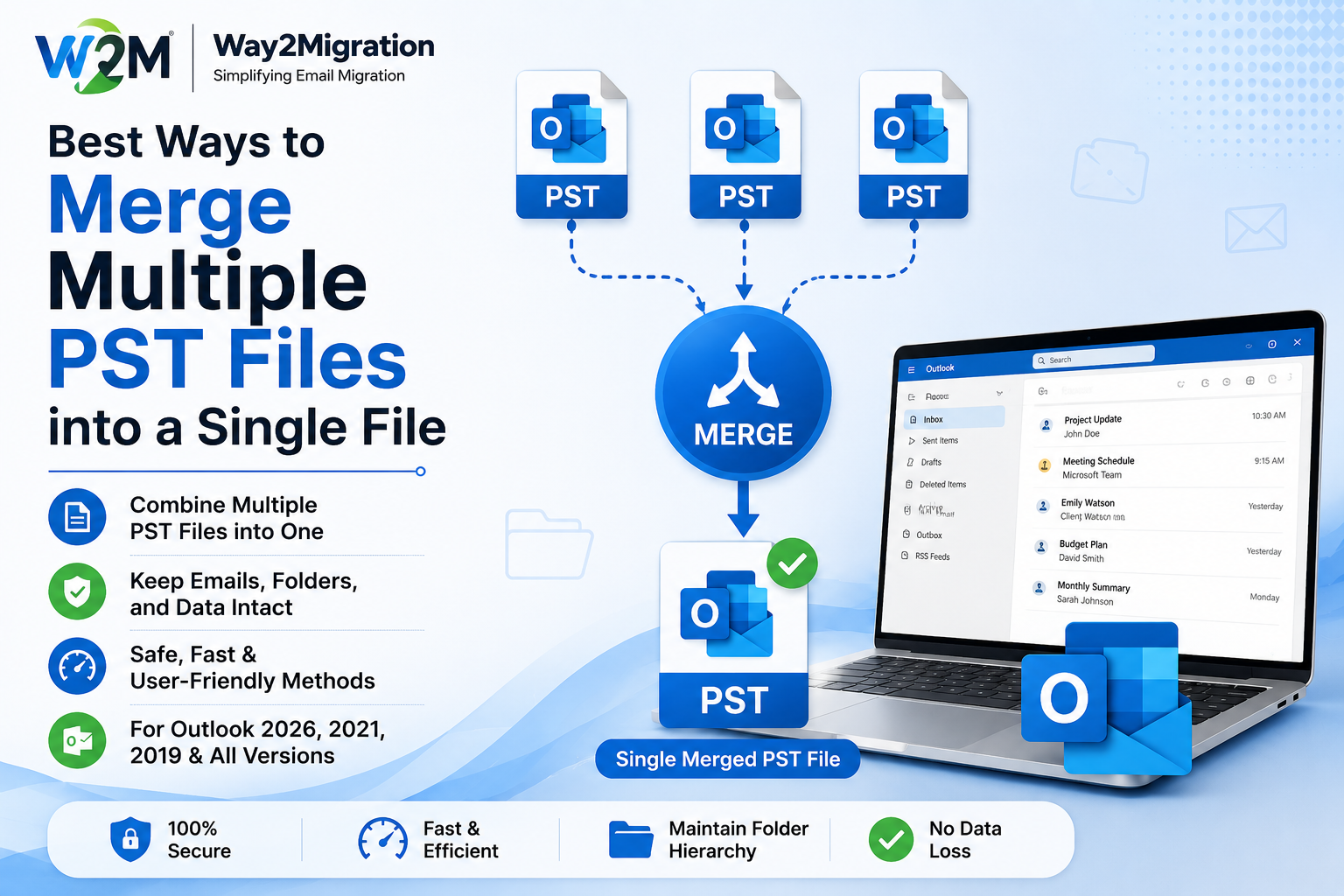
Managing multiple Outlook PST files can become difficult, especially when emails, contacts, calendars, and other mailbox data are scattered across different files. Users often create separate PST files for backups, old email accounts, different projects, or archived data. Over time, finding specific information across several files can become inconvenient.
One practical solution is to merge multiple PST files into a single file. A consolidated PST makes Outlook data easier to manage, search, back up, and access. Depending on the number and size of PST files, users can choose between manual Outlook methods and dedicated software such as a PST converter tool.
In this guide, we will discuss the best ways to combine multiple PST files while keeping the process simple and organized.
Why Merge Multiple PST Files?
Before learning the methods, it is important to understand why users may want to combine PST files. Working with several Outlook data files can make mailbox management unnecessarily complicated.
Some common reasons include:
- Keeping all emails in one centralized PST file
- Reducing the number of Outlook data files
- Making email searches faster and easier
- Creating a single backup of important mailbox data
- Combining PST files from different Outlook profiles
- Organizing archived emails in one location
A single PST file can make everyday mailbox management more convenient and reduce the need to switch between multiple data files.
Method 1: Import Multiple PST Files Using Outlook
Microsoft Outlook provides an inbuilt Import/Export feature that can be used to combine data from different PST files. This method does not require third-party software, making it useful for users who only have a few PST files.
Steps to Merge PST Files Manually
- Open Microsoft Outlook on your computer.
- Go to File > Open & Export > Import/Export.
- Select Import from another program or file and click Next.
- Choose Outlook Data File (.pst).
- Browse and select the PST file you want to import.
- Select the folders or complete mailbox data you want to import.
- Choose the option to import the items into the current mailbox.
- Click Finish and allow Outlook to complete the process.
Repeat these steps for each PST file you want to combine.
This approach works well for smaller tasks, but manually importing many PST files can take considerable time. Users also need to carefully select folders to avoid importing unwanted or duplicate data.
Method 2: Drag and Drop Outlook Data
Another simple option is to open multiple PST files in Outlook and move their folders or individual items into one primary PST file.
First, open the required PST files through File > Open & Export > Open Outlook Data File. Once the files appear in the Outlook folder list, you can select emails, contacts, calendar items, or folders and move them to the destination PST.
This method is suitable when you only need to move a limited amount of data. However, it becomes inconvenient when dealing with large PST files containing thousands of emails.
Method 3: Use a PST Converter Tool
When several PST files need to be merged, using a professional PST converter tool can make the process easier. Dedicated software is generally designed to handle large amounts of mailbox data and can provide additional options for managing PST files.
A reliable tool may help users combine or process multiple PST files while maintaining the original mailbox structure. Depending on the software, users may also get features such as folder selection, preview options, filtering, and support for large PST files.
Before using any third-party software, check whether it supports your Outlook version and the PST file size you are working with. It is also a good practice to create a backup of the original files before starting the merging process.
What to Check Before Merging PST Files
Merging mailbox data should be done carefully to avoid unnecessary problems. Consider the following points before starting:
Create a Backup
Always keep copies of the original PST files. If something goes wrong during the process, the backup can help you restore your mailbox data.
Check PST File Health
If a PST file is corrupted or damaged, Outlook may have difficulty opening or importing it. Check the file before beginning the merging process.
Remove Unwanted Data
Review the PST files and delete unnecessary emails, attachments, or folders if they are no longer required. This can help keep the final PST file organized.
Watch for Duplicate Emails
When multiple PST files contain the same mailbox data, duplicate emails may appear after merging. Review the imported data carefully and use appropriate duplicate-management options where available.
Which Method Should You Choose?
The best method depends on your requirements. If you only need to combine two small PST files, Outlook’s built-in Import/Export feature may be sufficient. It is free and does not require additional software.
For larger collections of PST files, however, the manual approach can become time-consuming. A professional PST converter can be a more convenient choice when you need to process multiple files or manage a large volume of Outlook data.
The important thing is to choose a solution that supports your PST files, preserves the required mailbox folders, and provides a safe way to handle your original data.
Final Thoughts
Having multiple PST files can make Outlook data management confusing and time-consuming. Combining them into a single PST can provide a more organized mailbox structure and make it easier to access emails and other Outlook items from one location.
For a small number of files, Outlook’s manual Import/Export option can work effectively. If you are dealing with multiple or large PST files, a dedicated PST converter tool may offer a simpler and more efficient approach.
Before merging, always create a backup and verify the resulting PST file after the process. If you are looking for a reliable solution for managing and converting Outlook data, Way2Migration provides tools designed to make email migration and PST-related tasks easier.


