
Exchange Server accounts utilize OST files for offline purposes. Whenever you come across an OST file that has lost connection and cannot sync anymore, the only way to get it back is by converting it to PST format. This article provides information on the conversion of OST to PST without the use of software. Furthermore, it recommends a professional tool called Way2migration for OST to PST Converter to fix corrupt files and recover lost mailboxes.
What are OST and PST files?
Offline Storage Table (OST) files are employed by Microsoft Outlook in conjunction with Exchange Server accounts. They maintain a local copy of your mailbox data so you are able to work offline. A typical OST file update changes every time you connect it to the server to ensure it has the latest data on the server. However, if the connection to the Exchange Server is disrupted, the OST file may become corrupted, and its data, may only be accessed after conversion.
Outlook uses PST, or Personal Storage Table, to store personal contacts, calendars, emails, and other data locally on your computer. However, PST files can be accessed independently and are not directly related to the Exchange server account as OST files are. It is primarily used for storing emails, backing up, or migrating Outlook data from one machine to another. PST files are more versatile when it comes to data storage and retrieval.
Why do Users Prefer to Convert their Microsoft OST to PST?
Users often choose to convert their Microsoft OST files to PST format for several practical reasons:
- Accessibility: In cases where a connection to the Exchange Server is lost or an account is deactivated, OST files become out of reach. Users have been able to move to PST to gain easy access to their essential information.
- Portability: PST files are not associated with an Exchange account, which makes moving the files between computers or sharing with colleagues when needed easier.
- Archiving: PST files are perfect for saving emails and data that are no longer frequently accessed but still important, thus easing the pressure on the working mailboxes.
- Backup purposes: PST files are additional files created to safeguard data from loss in the event of server or account-related complications.
- Migration: While migrating between different email service providers or changing from one operating system to another, OST to PST conversion can help make the process less troublesome.
- Troubleshooting: This is especially useful if OST files have become corrupted or the synchronization with them has created problems since converting can solve these issues and restore data.
- Flexibility: PST files are more flexible as they provide applications with direct access to data and no restrictions like in server cases.
By converting OST to PST, users gain greater control over their data while ensuring continued access to their important information, regardless of server or account status.
Methods for OST to PST Conversion
Sometimes, your OST files are corrupted or damaged, and you want to access your OST files, so in this case, you need to convert OST files. You can convert OST to PST using a few different techniques. These manual techniques explain how to change OST files to PST.
Method 1: Export OST to PST Using Import/Export Wizard
To implement this method, you must first sign in to your Microsoft Outlook account and follow the on-screen instructions to export OST files to PST.
- Launch Microsoft Outlook, and then Go to the Open menu.
- Then select the Open & Export option, followed by Import/ Export, and tap Next.
- In the next Import and Export Wizard, select Export to a File and tap Next.
- Choose Outlook Data File (.pst) here and click Next.
- In the next wizard, select the mailbox folder that you wish to export. Don’t forget to check the box to include subfolders.
- Now, browse the location to save your new PST file, manage the options for duplicate, and hit Finish.
Method 2: Use the Archiving Method to Convert OST to PST
When your data grows larger than the available storage and you do not want to delete it, this is the best option. This method helps you manage the size of your mailbox. By employing the Auto Archiving technique, you have control over the size of your mailbox. Follow the below steps to use the above method.
- Open Microsoft Outlook and select File > Options.
- Now select the Advanced option, followed by Auto Archive Settings.
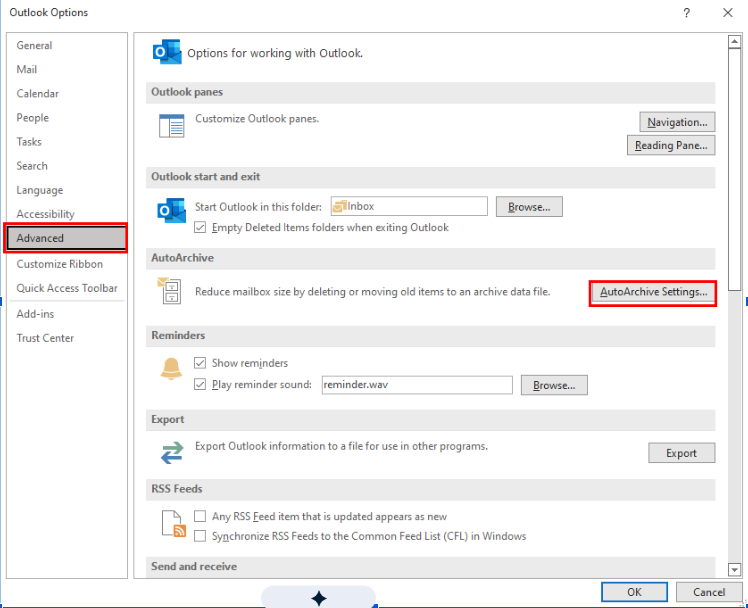
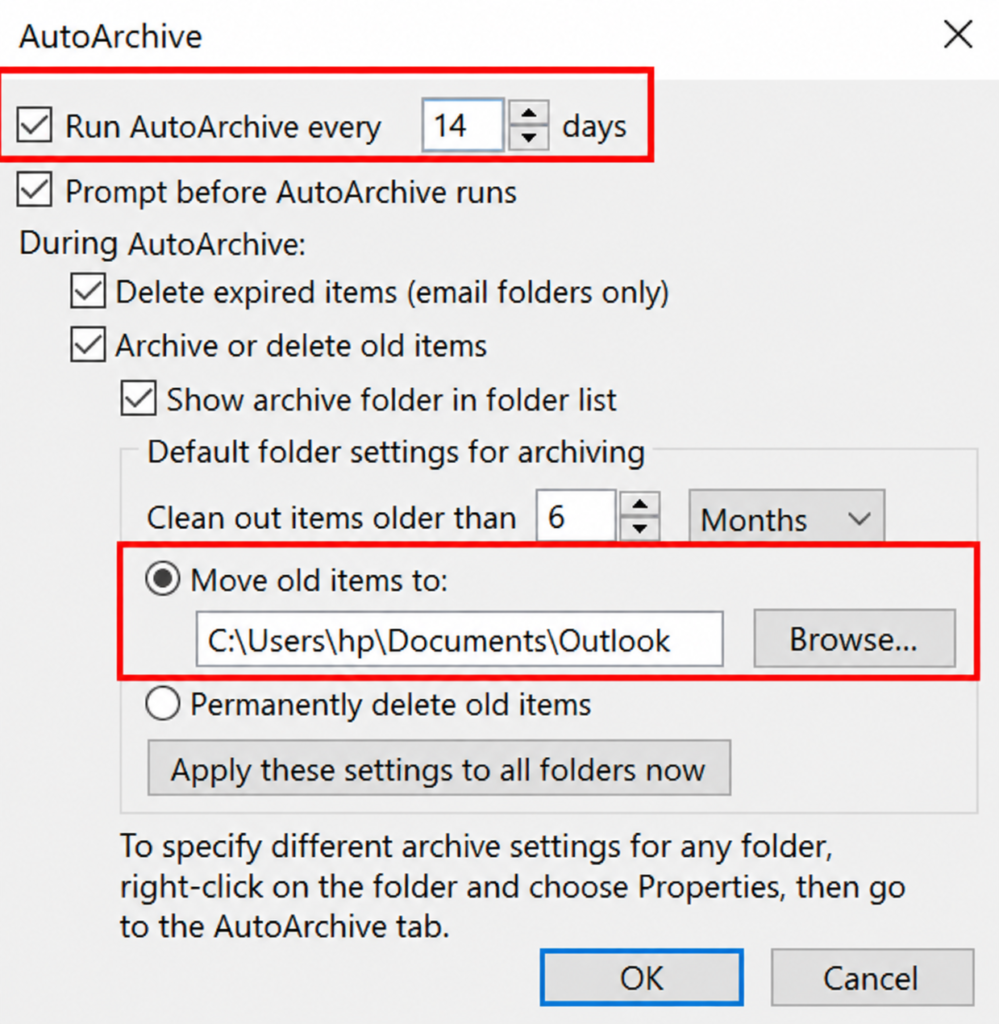
- In the next tab, manage the number of days that you want to run AutoArchiving.
- Now, select the location to move your files and tap Ok.
Method 3: Use the drag-and-drop method to convert OST to PST free.
This method helps you most when you wish to move selected data from your Outlook account. You can convert your OST data file to a new PST to perform this task. You can reduce the size of your OST mailbox by doing this. To create a new data file in Outlook, follow the steps.
- Access Outlook and go to the Home tab.
- Click New Items > More Items > Outlook Data Files > New Outlook Data File.
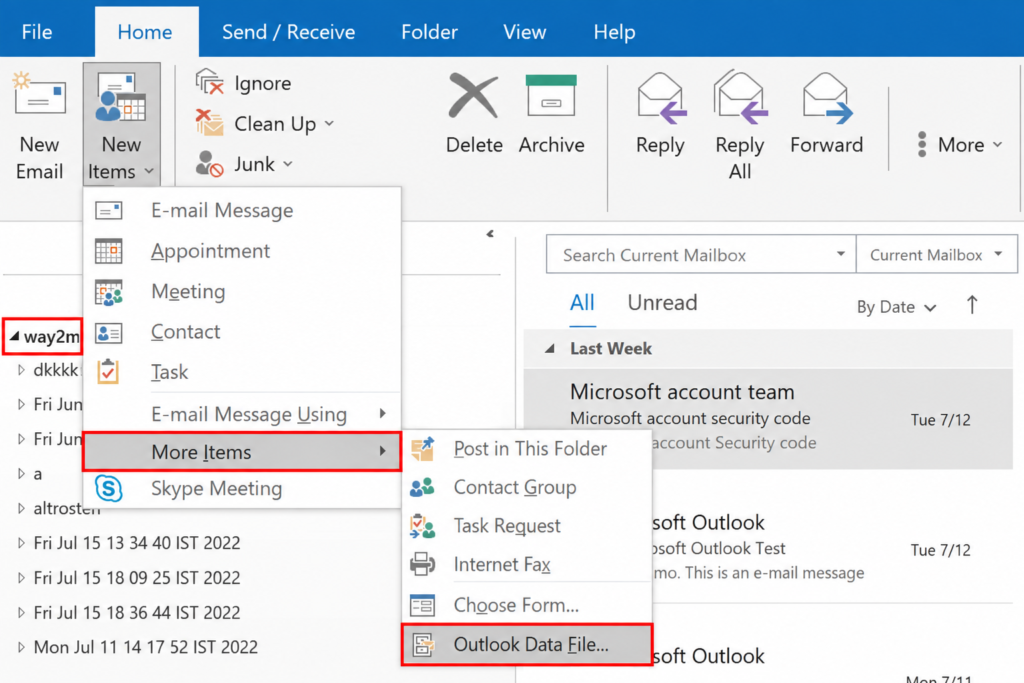
Note: These steps will help you create a new PST file.
- Now drag all the mailbox folders that you wish to move to the newly created file.
Limitations of the Manual Method
Although these techniques can assist you in exporting OST to PST, they are not the ideal method for conversion. It also has some restrictions, which are detailed below.
- For conversion, you must have technical knowledge.
- Lengthy method and failed to convert bulk OST files.
- During the conversion, there may be a risk of data loss.
- If an OST file is corrupted, these techniques are unsuccessful.
- To export OST files, several complicated steps must be taken.
These are some disadvantages of manual methods that could harm your data; in this case, you require the help of a technical expert to export OST to PST.
Convert OST to PST With a Professional Tool
Way2migration OST to PST Converter is one of the most reliable tools that not only converts OST files to PST but also exports Contacts, Calendars, Emails, Tasks, Notes., etc. to the Outlook data file PST. This utility’s user-friendly interface makes it easier to use.
This advanced OST to PST converter is loaded with multiple advanced features, which include support for web-based email clients, conversion of OST in 17+ file formats, compatibility with all OS (Mac, Windows, and Linux), and others.
Standout Features of the Utility
- Preview your OST file and sort the emails accordingly with the Data Range Filter feature.
- Supported by UNICODE and ANSI both.
- Convert the OST file to PST, and other formats, which include PDF, MSG, DOC, CSV, HTML, EML, EMLX, PNG, and MBOX.
- Preview your OST file before you save it to your chosen format.
- Converts password-protected and encrypted OST files.
- Split your large PST files into smaller PSTs.
Convert OST to PST With Easy Steps
- Install the Way2migration OST to PST Converter Tool.
- Add the OST file, and check the mailbox you want to convert or preview.
- Use the Filter Panel to customize your added OST.
- Assign the name for your PST and click the Export button.
- Go to your chosen location and access the PST, that you recently converted.


