
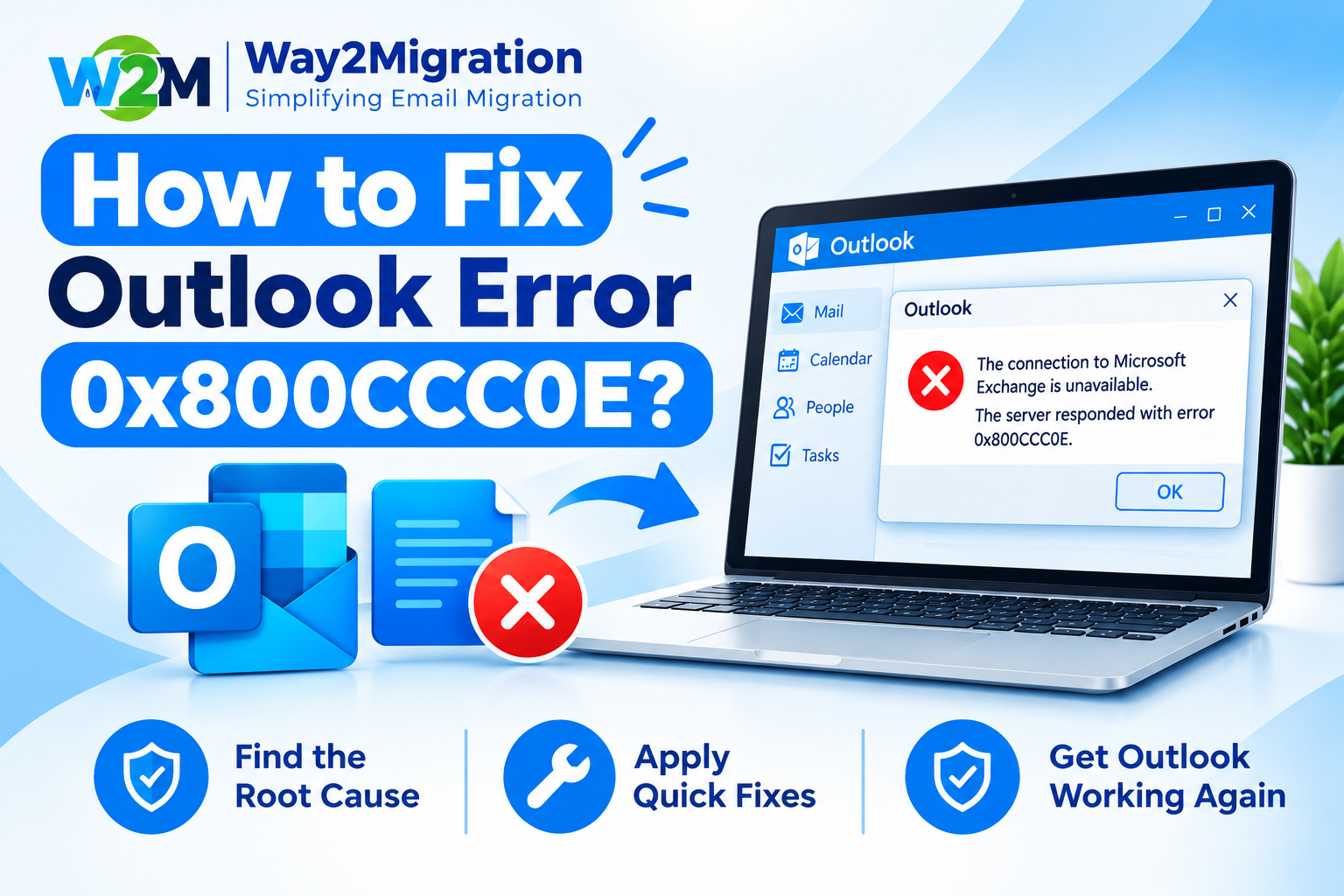
Microsoft Outlook is widely used for managing emails, calendars, contacts, and business communication. However, users sometimes face the Outlook Error 0x800CCC0E while sending or receiving emails. This error usually indicates that Outlook is unable to connect properly to the email server.
The error message may appear as “Outlook cannot synchronize subscribed folders” or “Cannot connect to the server.” It can occur with Gmail, Yahoo, Microsoft accounts, or other IMAP/POP email accounts configured in Outlook. Microsoft has also documented recent 0x800CCC0E synchronization issues affecting some Gmail and Yahoo accounts in classic Outlook.
If you are wondering how to fix Outlook Error 0x800CCC0E, follow the solutions below.
What Causes Outlook Error 0x800CCC0E?
The error can occur for several reasons, including:
- Incorrect incoming or outgoing mail server settings
- Incorrect IMAP or SMTP port numbers
- Internet connectivity problems
- Firewall or antivirus interference
- Incorrect email password or authentication settings
- Corrupted Outlook profile
- Problems with Outlook data files
- Outdated Outlook application
- Authentication issues with Gmail or Yahoo accounts
In some cases, a temporary problem with the email provider can also prevent Outlook from connecting to the server.
How to Fix Outlook Error 0x800CCC0E?
1. Check Your Internet Connection
First, make sure your computer has a stable internet connection. Open a web browser and visit a reliable website.
If websites are not loading properly, fix your internet connection before troubleshooting Outlook.
Microsoft also recommends checking the internet connection as one of the first steps when Outlook cannot send or receive messages.
2. Verify IMAP and SMTP Server Settings
Incorrect server settings are one of the common reasons for Outlook Error 0x800CCC0E.
Open Outlook and go to:
File → Account Settings → Account Settings → Select your email account → Change
Check your incoming and outgoing server details with your email provider.
For many IMAP accounts, common secure ports include:
- IMAP: 993 with SSL
- SMTP: 587 with TLS
However, the correct server name and port depend on your email provider. Microsoft also recommends checking the provider’s official settings when configuring POP or IMAP accounts.
3. Enable SMTP Authentication
If Outlook can receive emails but cannot send them, SMTP authentication may be incorrectly configured.
Go to your email account’s advanced settings and look for the Outgoing Server option.
Enable:
My outgoing server (SMTP) requires authentication
Then select the option to use the same username and password as your incoming mail server, if required by your provider.
Correct outgoing-server authentication can help resolve connection and sending problems.
4. Check Your Email Password
If you recently changed your email password, Outlook may still be using the old credentials.
Remove the outdated password and sign in again with your current credentials.
For Gmail, Yahoo, iCloud, and some other services, you may need an app password or modern authentication instead of your regular email password, depending on your account’s security configuration.
Microsoft recommends using supported modern authentication methods where available rather than outdated Basic Authentication.
5. Temporarily Check Firewall or Antivirus Settings
Sometimes security software can interfere with Outlook’s connection to mail servers.
If Outlook suddenly stopped sending or receiving emails after installing or updating antivirus/security software, check whether Outlook is being blocked.
Do not permanently disable your security software. Instead, check its application or firewall settings and allow Outlook to communicate through the network when appropriate.
6. Start Outlook in Safe Mode
A faulty Outlook add-in can sometimes cause email synchronization or sending problems.
To start Outlook in Safe Mode:
Press Windows + R → type outlook.exe /safe → press Enter
If Outlook works correctly in Safe Mode, an add-in may be causing the problem.
You can then go to:
File → Options → Add-ins → COM Add-ins → Go
Disable unnecessary add-ins and restart Outlook.
Microsoft recommends Safe Mode as a troubleshooting step for Outlook issues caused by add-ins.
7. Create a New Outlook Profile
If the problem continues, your Outlook profile may be damaged.
Go to:
Control Panel → Mail → Show Profiles → Add
Create a new profile and add your email account again.
Then open Outlook using the new profile and check whether emails synchronize correctly.
Creating a new profile is an official Microsoft troubleshooting method for persistent Outlook connection problems.
8. Repair Your Outlook Data File
If the Outlook data file is damaged, synchronization and email-related errors can occur.
Classic Outlook includes the Inbox Repair Tool (SCANPST.EXE), which can scan and repair certain Outlook data-file problems. Microsoft recommends this tool for repairing supported Outlook data files when troubleshooting email issues.
Before making major changes to your Outlook profile or data files, make sure important email data is backed up.
9. Update Microsoft Outlook
Using an outdated version of Outlook can sometimes cause compatibility and synchronization problems.
Open Outlook and go to:
File → Office Account → Update Options → Update Now
Install available Microsoft 365 or Office updates and restart Outlook.
Keeping Outlook updated can help resolve known bugs and compatibility problems.
Outlook Error 0x800CCC0E in Gmail or Yahoo
If you are using Gmail or Yahoo with classic Outlook, authentication or synchronization problems may cause the 0x800CCC0E error.
Microsoft documented a 2026 issue where some Gmail and Yahoo accounts stopped synchronizing in classic Outlook and displayed error 0x800CCC0E. Microsoft later marked that specific service issue as fixed.
If your Gmail account still shows the error, check the account’s authentication, credentials, IMAP settings, and Outlook profile before making unnecessary changes.
Frequently Asked Questions
What is Outlook Error 0x800CCC0E?
Outlook Error 0x800CCC0E generally indicates that Outlook cannot properly connect or synchronize with the email server.
How do I fix Outlook Error 0x800CCC0E?
Start by checking your internet connection, email password, IMAP/SMTP settings, ports, authentication, firewall, and Outlook profile. If the issue continues, create a new Outlook profile or repair the Outlook data file.
Why is Outlook not connecting to my IMAP server?
Incorrect server settings, wrong ports, authentication problems, network restrictions, or issues with the email provider can prevent Outlook from connecting to an IMAP server.
Can a corrupted Outlook profile cause 0x800CCC0E?
Yes. A damaged Outlook profile can cause synchronization and connection problems. Creating a new Outlook profile can help determine whether the existing profile is responsible.
Is Outlook Error 0x800CCC0E related to Gmail?
It can be. Gmail accounts configured in classic Outlook may encounter this error because of synchronization, authentication, or account-configuration problems. Microsoft has also documented a specific Gmail synchronization issue involving error 0x800CCC0E.
Conclusion
The Outlook Error 0x800CCC0E is usually related to email-server connectivity, authentication, account configuration, or Outlook profile problems. Start with simple solutions such as checking your internet connection, password, IMAP/SMTP settings, and authentication. If the error continues, try Outlook Safe Mode, create a new Outlook profile, repair the Outlook data file, or update Microsoft Outlook.
If you are dealing with Outlook data migration, PST/OST conversion, or email-related file management, Way2Migration provides practical solutions and tools to help you manage your email data more efficiently. Whether you need to troubleshoot Outlook or migrate your mailbox data, Way2Migration can help simplify the process


