
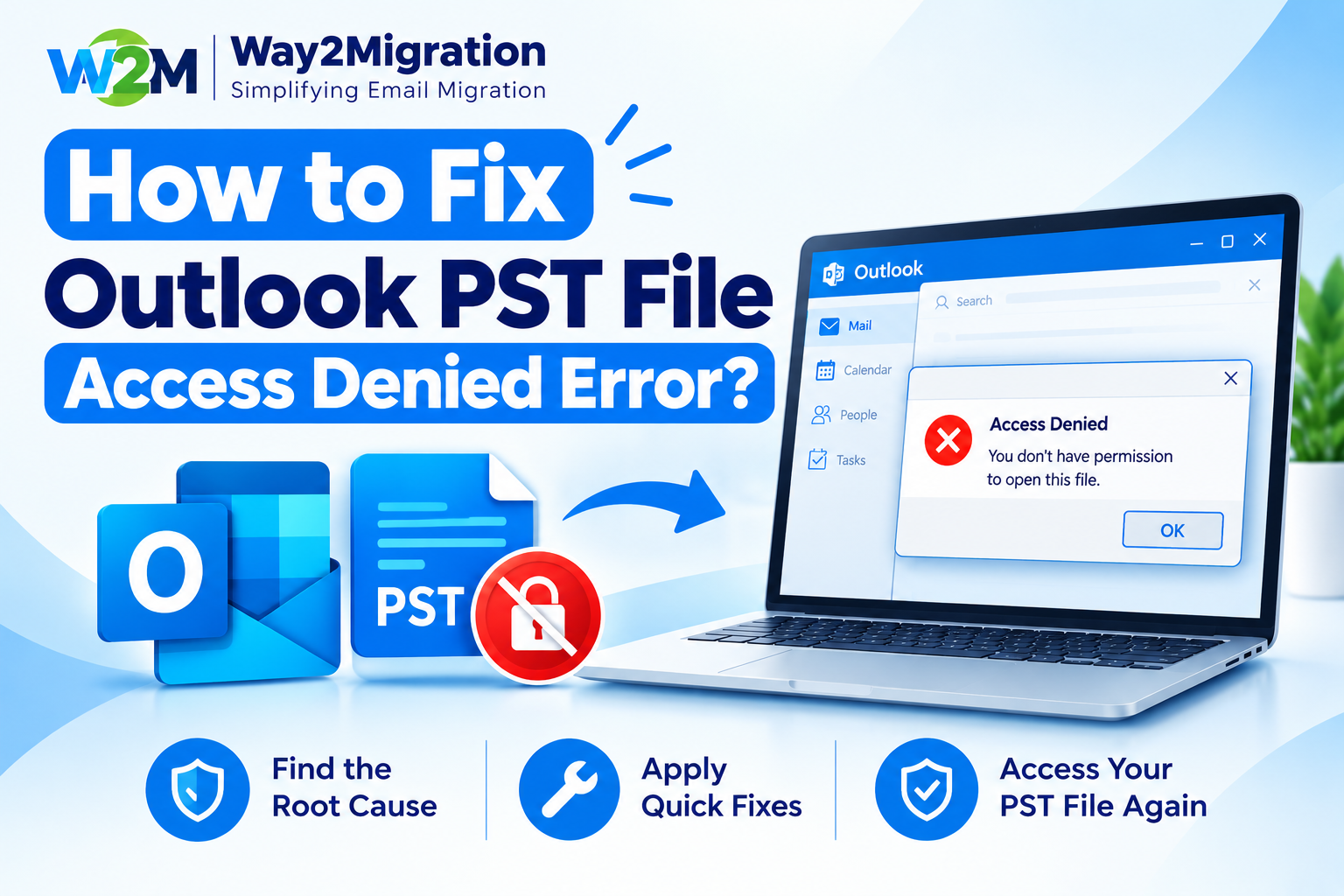
Microsoft Outlook uses PST (Personal Storage Table) files to store emails, contacts, calendars, tasks, and other Outlook data locally. Sometimes, while opening or importing a PST file, users may encounter the “Outlook PST File Access Denied” error. This usually means Outlook does not have sufficient permission to access the PST file or the file is marked as read-only.
If you are unable to open your PST file, don’t worry. In this guide, we will explain the common causes and effective ways to fix the Outlook PST File Access Denied Error.
What Is the Outlook PST File Access Denied Error?
The PST File Access Denied error occurs when Outlook cannot access or modify an Outlook Data File. You may see an error such as:
“You do not have permission to access the file.”
This problem can occur when the PST file is stored on a restricted location, has read-only permissions, or belongs to another Windows user account. Microsoft also recommends checking the file’s permissions and Read-only status when this error occurs.
Why Does Outlook Say PST File Access Is Denied?
There can be several reasons behind the PST file access denied problem:
- The PST file is set to Read-only.
- Your Windows account does not have sufficient permissions.
- The PST file was copied from another computer or user account.
- The PST file is stored on a restricted or external location.
- Outlook is already using the PST file in another process.
- The PST file is located in a synchronized folder and is not available correctly.
- The PST file may be damaged or corrupted.
Before making any major changes, create a backup copy of the original PST file.
How to Fix Outlook PST File Access Denied Error?
1. Check the PST File Location
First, check where your PST file is stored. Microsoft states that Outlook data files are commonly stored under the user’s Documents\Outlook Files folder.
If the PST file is located on a CD, network location, or another restricted location, copy it to a local folder on your computer.
For example, you can create a folder such as:
*C:\Outlook Data*
Copy the PST file there and try opening it again in Outlook.
2. Remove the Read-Only Attribute
A read-only PST file may prevent Outlook from accessing or modifying the data.
Follow these steps:
- Locate the PST file.
- Right-click the PST file.
- Select Properties.
- Under the General tab, look for Attributes.
- If Read-only is selected, clear the checkbox.
- Click Apply and then OK.
- Restart Outlook and try opening the PST file.
Microsoft specifically recommends clearing the Read-only attribute when permission errors occur with PST files.
3. Give Your Windows Account Full Permission
If the PST file still cannot be accessed, check its security permissions.
- Right-click the PST file.
- Select Properties.
- Go to the Security tab.
- Click Edit.
- Select your Windows or Microsoft account.
- Enable Full control if appropriate.
- Click Apply and then OK.
- Restart Outlook.
Microsoft notes that changing the file’s security permissions can resolve access problems, particularly when the file was previously associated with a different Windows account.
4. Close Outlook and Check for Another Outlook Process
Sometimes Outlook may still be running in the background, preventing access to the PST file.
Close Outlook completely and wait for a few seconds. You can also open Task Manager and check whether an Outlook process is still running.
If Outlook is still running, select the Outlook process and choose End task. Then start Outlook again and try accessing the PST file.
5. Open the PST File Directly in Outlook
Instead of importing the PST immediately, try opening it directly.
In classic Outlook:
File → Open & Export → Open Outlook Data File
Select the required PST file and click Open.
Microsoft provides this option for opening an existing PST file and accessing its emails and folders.
6. Check Whether the PST File Is Corrupted
If the permissions are correct but Outlook still cannot open the file, the PST file may be damaged.
Outlook includes the Inbox Repair Tool (ScanPST.exe), which can scan an Outlook Data File and repair certain errors. Microsoft recommends closing Outlook before running the Inbox Repair Tool.
Before repairing the PST, keep a backup copy of the original file.
7. Try a Different Local Folder
If the PST file is stored inside a restricted, synchronized, or unusual folder, move a copy to a simple local folder such as:
*C:\Outlook Data*
Then try opening the copied PST from Outlook.
Keeping the working PST on a local drive can also help avoid permission or file-access problems caused by certain folder configurations.
Frequently Asked Questions
Why is my Outlook PST file access denied?
The most common reasons include insufficient Windows permissions, a Read-only PST file, a restricted file location, or a PST file associated with another Windows account.
How do I give Outlook permission to access a PST file?
Right-click the PST file, select Properties → Security → Edit, select your Windows account, and provide the required permissions. Microsoft specifically recommends checking permissions when Outlook reports that you do not have permission to access a PST file.
Can a corrupted PST file cause an access denied error?
A damaged PST can cause Outlook to fail when opening or processing the data file. If permissions and file attributes are correct, you can use Microsoft’s Inbox Repair Tool to check and repair the PST.
Where are Outlook PST files normally stored?
PST files are commonly stored in the user’s Documents\Outlook Files folder, although the exact location can vary depending on the Outlook version and configuration.
Conclusion
The Outlook PST File Access Denied Error is commonly related to file permissions, the Read-only attribute, restricted storage locations, or problems with the PST file itself. Start by moving the PST to a local folder, removing Read-only status, checking Windows permissions, and reopening the file in Outlook. If the problem continues, check the PST for corruption using the Inbox Repair Tool.
For users who regularly work with Outlook data files and need reliable PST migration or conversion solutions, Way2Migration provides tools and resources designed to help manage and migrate Outlook data efficiently. Visit Way2Migration to explore solutions for PST conversion, migration, and other email-data management requirements.


