
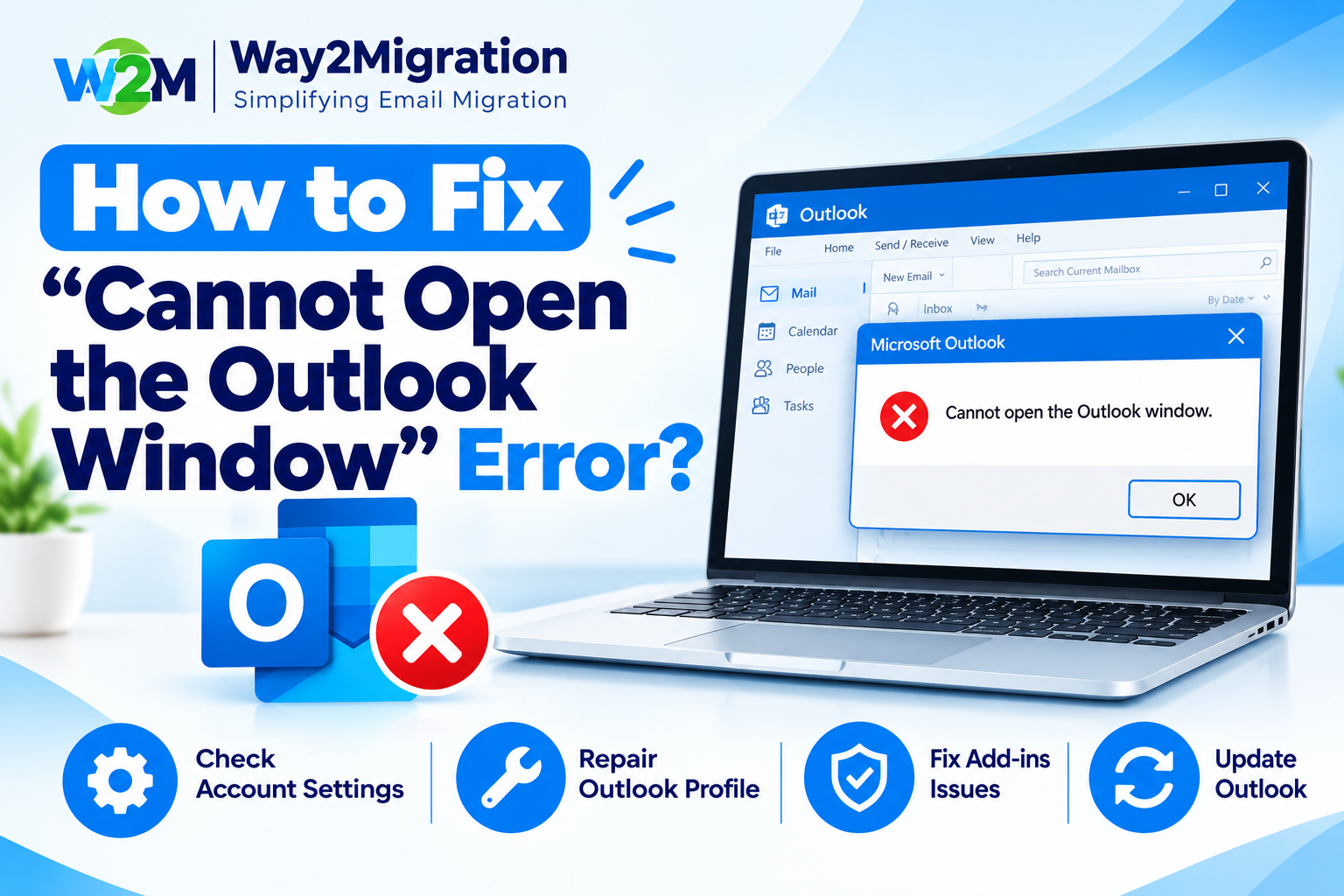
Are you unable to open Microsoft Outlook and seeing the message “Cannot start Microsoft Outlook. Cannot open the Outlook window”? This error can prevent Outlook from loading your emails, calendar, contacts, and other data.
The problem is commonly related to a corrupted Outlook profile, problematic add-ins, damaged Outlook data files, or corrupted navigation pane settings. In some Microsoft 365 cases, Exchange-related problems can also prevent Outlook from opening.
The good news is that you can try several troubleshooting methods before reinstalling Outlook. In this guide, we will explain how to fix the “Cannot Open the Outlook Window” error step by step.
Why Does Outlook Say “Cannot Open the Outlook Window”?
There is no single reason behind this Outlook startup error. Some common causes include:
- Corrupted Outlook profile
- Damaged PST or OST file
- Faulty or incompatible Outlook add-ins
- Corrupted navigation pane settings
- Problems with Microsoft 365 or Exchange connectivity
- Incorrect Outlook configuration
- Issues after an Outlook or Windows update
Microsoft recommends troubleshooting Outlook startup problems by checking Safe Mode, add-ins, profiles, data files, and navigation pane settings.
How to Fix “Cannot Open the Outlook Window” Error
1. Start Outlook in Safe Mode
The first solution is to start Outlook in Safe Mode. Safe Mode loads Outlook without its add-ins, making it easier to identify whether an add-in is causing the problem.
Press Windows + R to open the Run dialog.
Type:
Outlook /safe
Press Enter.
If Outlook opens successfully in Safe Mode, an add-in may be responsible for the startup problem.
To disable add-ins, go to:
File → Options → Add-ins → Manage COM Add-ins → Go
Disable the enabled add-ins and restart Outlook normally. You can later enable them one at a time to identify the problematic add-in.
2. Reset the Outlook Navigation Pane
A corrupted navigation pane configuration can also stop Outlook from opening.
Close Outlook completely and press Windows + R.
Enter:
Outlook.exe /resetnavpane
Click OK.
This command resets Outlook’s navigation pane customizations and can resolve certain startup problems.
3. Create a New Outlook Profile
If Outlook still does not open, your existing Outlook profile may be corrupted.
Open Control Panel and search for Mail.
Select:
Mail → Show Profiles → Add
Create a new profile and configure your email account. Then select the new profile as the default profile and try opening Outlook again.
If Outlook works normally with the new profile, the original profile was likely damaged. Microsoft also recommends creating a new profile as a troubleshooting step when Outlook cannot start.
4. Repair the Outlook PST or OST File
A damaged Outlook data file can cause startup and folder-access problems.
For PST files, Microsoft provides the Inbox Repair Tool (ScanPST.exe), which can scan the file and repair certain errors.
Before repairing or modifying an important Outlook data file, make a backup copy whenever possible. This is especially important if the file contains important emails, contacts, calendar information, or other business data.
If you are dealing with a severely damaged PST or need to recover, convert, or migrate Outlook data, specialized PST management tools may provide additional options.
5. Check Your Outlook Profile and Account Connection
If the error includes messages such as “The set of folders cannot be opened” or mentions Microsoft Exchange, the problem may involve the Outlook profile or Exchange connection.
Microsoft has documented cases where Exchange-related service issues produced the “Cannot open the Outlook window” error. Some of those issues were fixed on the service side, while Microsoft recommended Outlook on the web or the new Outlook as a workaround for affected users.
If your organization uses Microsoft 365, check whether Outlook on the web works with the same account. If web access works but classic Outlook does not, the problem may be specific to the desktop Outlook profile or installation.
6. Use Microsoft’s Outlook Troubleshooter
Microsoft provides troubleshooting tools for common classic Outlook startup problems. If manual methods do not resolve the issue, Microsoft recommends using its Outlook startup troubleshooter where available.
This can be useful when the problem is related to Outlook configuration or other startup components that are difficult to identify manually.
What If Outlook Still Won’t Open?
If none of the above methods work, avoid repeatedly opening Outlook because the underlying issue may involve a damaged profile, data file, or Office installation.
Try these additional checks:
- Restart Windows and try Outlook again.
- Install available Microsoft Office/Outlook updates.
- Check whether Outlook works in Safe Mode.
- Create a fresh Outlook profile.
- Repair the Microsoft 365 or Office installation.
- Check the PST/OST file for corruption.
- If you use Microsoft 365, check for Exchange or service-related issues.
For business users, contacting the Microsoft 365 administrator may be necessary when the error is related to Exchange Online or an organization-level configuration.
Frequently Asked Questions
How do I fix “Cannot open the Outlook window”?
Start by opening Outlook in Safe Mode using Outlook /safe. If that works, disable your Outlook add-ins. If it does not, try Outlook.exe /resetnavpane, create a new Outlook profile, and check your Outlook data files.
Why won’t Outlook open on my computer?
Outlook may fail to open because of a corrupted profile, damaged PST/OST file, incompatible add-in, navigation pane problem, or an account/server-related issue.
Can Safe Mode fix Outlook startup problems?
Safe Mode itself does not permanently repair Outlook, but it helps identify whether add-ins are causing the startup problem. If Outlook opens in Safe Mode, disabling the problematic add-in can resolve the issue.
Will creating a new Outlook profile delete my emails?
Creating a new profile does not automatically mean your existing Outlook data is deleted. However, you should back up important PST files before removing or changing profiles, particularly when offline data is involved.
Conclusion
The “Cannot Open the Outlook Window” error can be frustrating, but it is often possible to resolve it without reinstalling Outlook. Start with Safe Mode, disable problematic add-ins, reset the navigation pane, create a new Outlook profile, and check for damaged PST or OST files.
If Outlook still does not open, especially when you see messages such as “The set of folders cannot be opened,” the issue may require additional profile, data-file, or Microsoft 365 troubleshooting.
If you are dealing with inaccessible, corrupted, or difficult-to-manage Outlook PST or OST files, Way2Migration can help you explore solutions for Outlook data migration and file conversion. Taking the right approach before repairing, converting, or migrating your Outlook data can help protect important emails and reduce the risk of data loss.


