
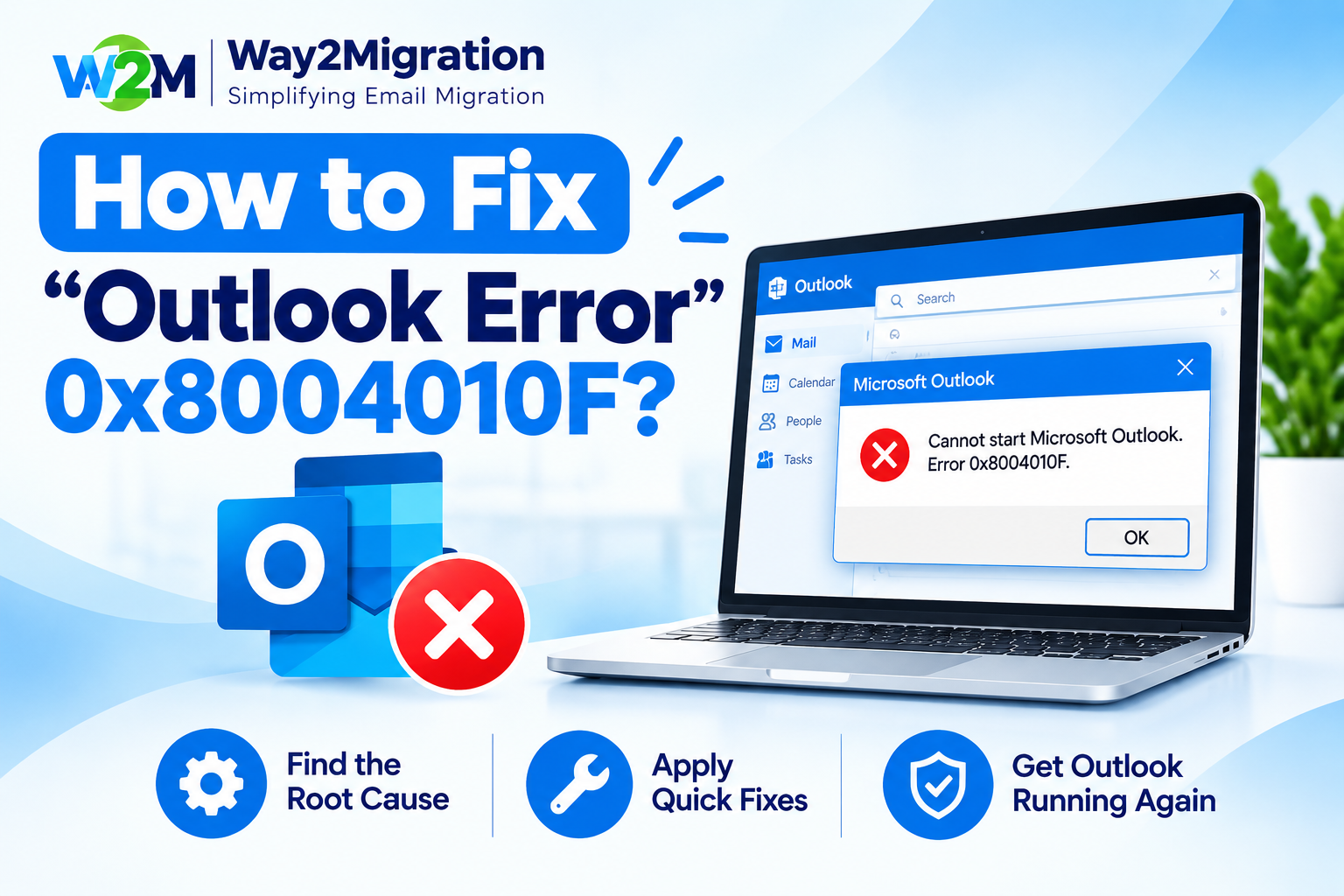
Microsoft Outlook is widely used for managing emails, calendars, contacts, and other business communication. However, users sometimes face Outlook Error 0x8004010F, especially when trying to send or receive emails. This error may appear with messages such as “The operation failed. An object cannot be found” or “Outlook data file cannot be accessed.”
The error is commonly related to an Outlook profile, data file, or Offline Address Book issue. Microsoft also recommends checking Outlook profiles and data files when troubleshooting send/receive problems.
If you are looking for how to fix Outlook Error 0x8004010F, follow the methods below.
What Is Outlook Error 0x8004010F?
Outlook Error 0x8004010F is a common send/receive error that can prevent Outlook from properly accessing required account information or data files.
You may see an error similar to:
“Task Microsoft Exchange Server reported error (0x8004010F): The operation failed. An object cannot be found.”
The problem can occur when the Outlook profile is damaged, the required data file is unavailable, or Outlook cannot locate the correct data associated with the email account.
Microsoft explains that an Outlook profile contains account information, data files, and information about where email is stored.
Why Does Outlook Error 0x8004010F Occur?
There can be several reasons behind this Outlook error, including:
- Corrupted Outlook profile
- Incorrect Outlook data file configuration
- Damaged or inaccessible PST/OST file
- Incorrect default data file
- Offline Address Book synchronization problems
- Outlook profile configuration issues
- Problems with the local Outlook data file
For Microsoft 365, Exchange, and Outlook.com accounts, Outlook commonly uses an OST file as a synchronized local copy of mailbox data, while POP accounts generally use a PST file.
How to Fix Outlook Error 0x8004010F?
Method 1: Create a New Outlook Profile
Creating a new Outlook profile is one of the most effective solutions when the existing profile is corrupted.
To create a new profile:
- Close Microsoft Outlook.
- Open Control Panel.
- Search for Mail.
- Select Mail (Microsoft Outlook).
- Click Show Profiles.
- Select Add.
- Enter a new profile name.
- Add your email account.
- Select the new profile as the default profile.
- Open Outlook and check whether the error is resolved.
A new profile can help determine whether the original Outlook profile is causing the problem. Microsoft recommends creating a new profile when an existing profile becomes corrupted.
Method 2: Check the Outlook Data File
Incorrect or inaccessible data-file settings can also cause Outlook send/receive errors.
Open:
File → Account Settings → Account Settings → Data Files
Check whether the correct PST or OST file is listed and associated with your email account.
If Outlook cannot find the required data file, you may need to reconnect the correct file or create a new Outlook profile.
Do not delete your existing PST file before creating a backup, especially if it contains important emails, contacts, or other information.
Method 3: Repair the Outlook PST File
If you are using a PST file and suspect that it is damaged, Microsoft’s Inbox Repair Tool (SCANPST.EXE) can scan and repair the data file.
The general process is:
- Close Outlook.
- Locate and open SCANPST.EXE.
- Select your Outlook PST file.
- Click Start.
- Allow the tool to scan the file.
- If errors are detected, select Repair.
- Reopen Outlook.
Microsoft notes that the repair process creates a backup file and may need to be run more than once in some cases.
Method 4: Check the Offline Address Book
If the error appears while using an Exchange account, the issue may be connected to the Offline Address Book (OAB).
Microsoft specifically documents error 0x8004010F in connection with Offline Address Book synchronization in classic Outlook with Cached Exchange Mode.
Try performing a manual Send/Receive and allow Outlook to synchronize. If the problem continues, creating a fresh Outlook profile can help rebuild the required configuration.
Method 5: Start Outlook in Safe Mode
Outlook add-ins can sometimes interfere with normal operation.
To test Outlook in Safe Mode:
- Press Windows + R.
- Type outlook.exe /safe.
- Press Enter.
- Try sending or receiving an email.
If Outlook works correctly in Safe Mode, an add-in may be responsible. Microsoft recommends Safe Mode as a troubleshooting step for Outlook send/receive problems.
What Is the Best Way to Fix Outlook Error 0x8004010F?
For most users, the recommended troubleshooting order is:
Check the Outlook profile → Verify the data file → Repair the PST if required → Check synchronization → Create a new Outlook profile.
If your Outlook data file is severely damaged or you need to migrate emails between Outlook accounts, specialized PST conversion and migration tools can also be useful for extracting or transferring mailbox data safely.
Frequently Asked Questions
How do I fix Outlook error 0x8004010F?
You can usually fix the error by creating a new Outlook profile, checking the associated PST/OST file, repairing a damaged PST, or resolving Offline Address Book synchronization issues.
What does Outlook error 0x8004010F mean?
It generally indicates that Outlook cannot find or access an expected object or data associated with the account. It can occur because of profile, data-file, or synchronization problems.
Can a corrupted PST cause error 0x8004010F?
Yes. If Outlook cannot properly access a required PST file, repairing the file with Microsoft’s Inbox Repair Tool may help.
Will creating a new Outlook profile delete my emails?
Creating a new profile does not automatically mean that your original PST data is deleted. However, you should always back up important Outlook data before making major profile or data-file changes.
Conclusion
Outlook Error 0x8004010F can be frustrating because it may stop Outlook from sending or receiving emails. In many cases, the problem is related to a corrupted Outlook profile, incorrect data-file configuration, damaged PST/OST data, or synchronization issues.
Start by checking your Outlook profile and data file. If necessary, create a new profile or repair the PST file using the Inbox Repair Tool. For complex PST migration, conversion, or extraction requirements, Way2Migration can help users work with Outlook mailbox data more efficiently.
By following the troubleshooting methods above, you can identify the underlying cause and get Outlook working normally again.


