
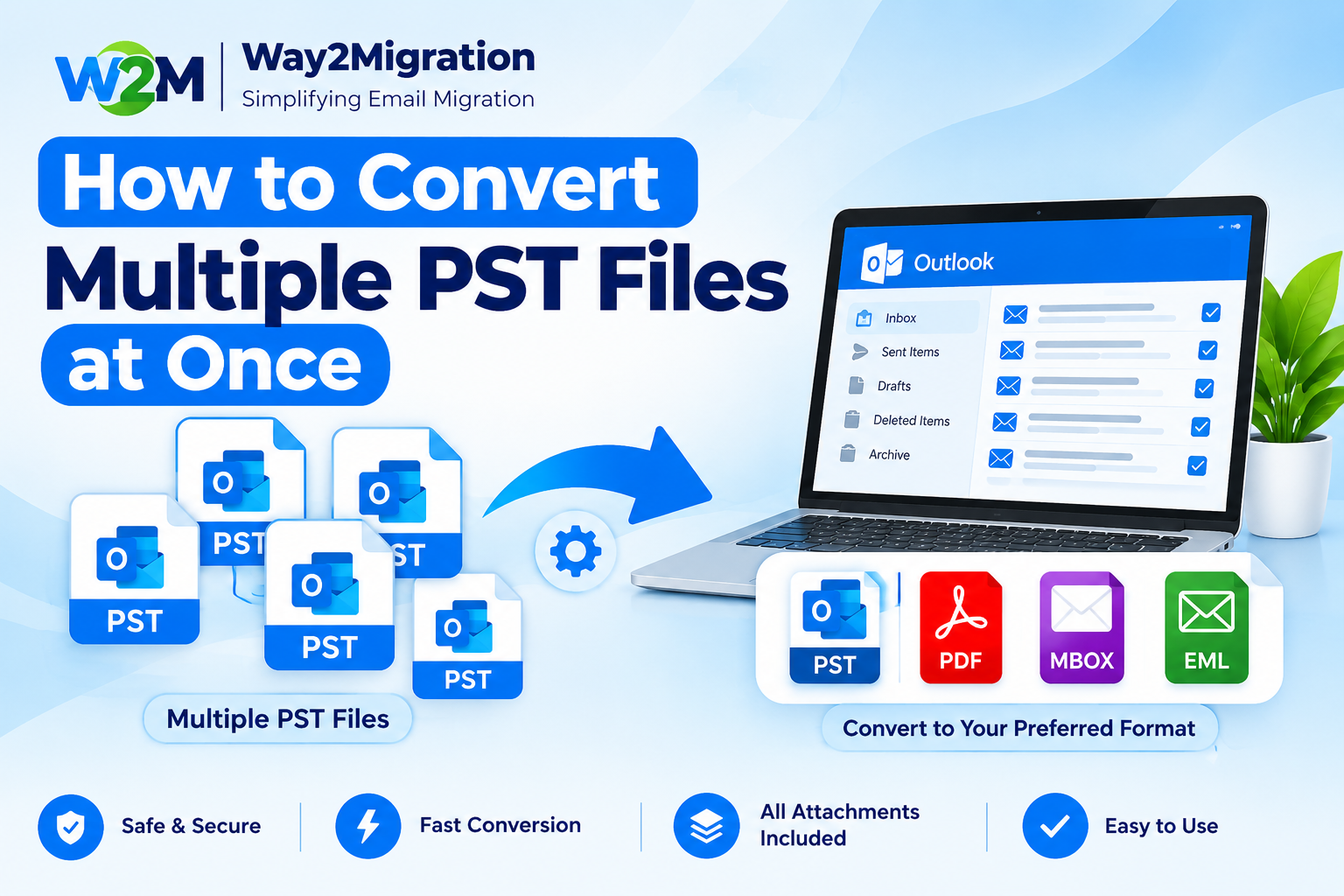
Managing multiple Outlook PST files can become difficult when you have years of emails, attachments, contacts, calendars, and archived mailbox data stored across different files. Opening and processing each PST file individually can take considerable time, especially when you need to migrate a large amount of Outlook data.
If you are looking for a way to convert multiple PST files at once, a batch PST conversion approach can make the process more organized and efficient. Instead of handling every file separately, you can select multiple PST files and process them together using a suitable PST converter tool.
In this guide, we will explain why batch PST conversion is useful, how it works, and what you should consider before converting multiple Outlook PST files.
What Is a PST File?
PST stands for Personal Storage Table. It is an Outlook data file used to store mailbox information locally. Depending on the Outlook setup, a PST file can contain emails, attachments, contacts, calendar items, tasks, notes, and other Outlook data.
PST files are commonly created when users export or back up Outlook mailbox data. They can also be used for storing older or archived emails separately from the primary mailbox.
When several PST files are created over time, managing them individually can become inconvenient. This is where multiple PST file conversion can be helpful.
Why Convert Multiple PST Files at Once?
There are several situations where users may need to process multiple PST files together.
For example, you may have separate PST files from different Outlook accounts, computers, employees, or backup periods. Converting them one by one can require repeated manual steps.
Batch conversion can help you:
- Process multiple PST files in a single operation
- Reduce repetitive manual work
- Save time when handling large mailbox collections
- Maintain better organization during migration
- Process emails and attachments from several PST files together
- Simplify large-scale email migration projects
For businesses, IT administrators, and users moving from Outlook to another email platform, handling multiple PST files efficiently can be particularly important.
How to Convert Multiple PST Files at Once
The exact process depends on the destination format and the PST converter software you use. However, a typical batch conversion process follows these steps.
Step 1: Collect Your PST Files
First, place the PST files you want to convert in an easily accessible folder. If the files are located on different drives or folders, organize them before starting the conversion.
It is also a good idea to create a backup copy of the original PST files. This gives you a safe copy if you need to repeat the conversion.
Step 2: Choose a PST Converter Tool
Select a PST converter that supports batch processing. A suitable PST converter tool should allow you to add multiple PST files rather than forcing you to process each file separately.
Check whether the software supports your required output format, such as MBOX or another mailbox format.
Step 3: Add Multiple PST Files
Open the converter and use its option to add or select PST files. Depending on the software, you may be able to select individual files, an entire folder, or multiple PST files at the same time.
Review the selected files before starting the conversion to make sure the required PST files have been included.
Step 4: Select the Destination Format
Choose the format you need for your migration. For example, users moving Outlook data to email clients that use MBOX may select MBOX as the output format.
The destination format should be compatible with the email application or service where you plan to use the converted data.
Step 5: Start the Batch Conversion
After selecting the PST files and destination format, start the conversion process. The converter processes the selected files according to its supported batch-conversion functionality.
For a large collection of PST files, the conversion time can depend on factors such as file size, number of emails, attachments, computer performance, and the selected output format.
Step 6: Verify the Converted Data
After conversion, open the output files and check important mailbox folders. Verify emails, attachments, folder structures, contacts, and other required information.
This step is especially important before deleting or moving the original PST files.
Can Outlook Convert Multiple PST Files at Once?
Outlook provides options for opening and importing PST files, but its workflow is generally designed around individual data-file operations. Microsoft documents importing a PST through Outlook’s import functionality and opening PST files separately.
For larger migration projects involving several PST files, specialized software with batch-processing support can therefore be more convenient than repeating the same manual process for every file.
For enterprise environments, Microsoft Exchange Server also provides mailbox import and export functionality that can process multiple PST requests asynchronously, although this is a different approach from using a desktop PST converter.
Things to Check Before Batch PST Conversion
Before converting multiple PST files, keep these points in mind:
Create a backup: Always preserve the original PST files until you have verified the converted data.
Check file health: Damaged or inaccessible PST files may cause conversion or import problems. Microsoft also documents several common PST import issues related to permissions and file access.
Check available storage: Converted files can require significant disk space, particularly when attachments are included.
Verify the output format: Make sure the destination format works with the email client or migration platform you are using.
Review duplicate data: If several PST files contain overlapping mailbox data, check the converter’s duplicate-handling options when available.
Final Thoughts
Converting multiple PST files individually can be time-consuming when you are dealing with a large Outlook archive or migration project. A batch PST converter can simplify the process by allowing several files to be selected and processed together.
Before starting, organize your PST files, create backups, select the correct output format, and verify the converted data afterward. If you regularly handle Outlook migration tasks, using a reliable PST converter tool with batch-processing support can make large-scale PST conversion more manageable.
For users looking to convert or migrate Outlook PST data efficiently, Way2Migration provides solutions and resources designed around common email migration requirements.
Frequently Asked Questions
Can I convert multiple PST files at the same time?
Yes. Multiple PST files can be processed together when you use a PST converter that supports batch conversion. The exact number of files supported can depend on the software.
What data can be converted from a PST file?
A PST can contain emails, attachments, contacts, calendar items, tasks, notes, and other Outlook information. The exact data preserved during conversion depends on the selected output format and conversion software.
Is it safe to convert multiple PST files?
Yes, but you should always keep backup copies of the original PST files and verify the converted data before removing the originals.
Can I convert PST files to MBOX in bulk?
Yes, if the selected PST-to-MBOX converter supports batch processing. This can be useful when migrating Outlook mailbox data to an email client or platform that uses MBOX.
Why is batch PST conversion useful?
Batch conversion reduces repetitive manual work and can make it easier to process large collections of Outlook PST files during email migration or archiving projects.


