
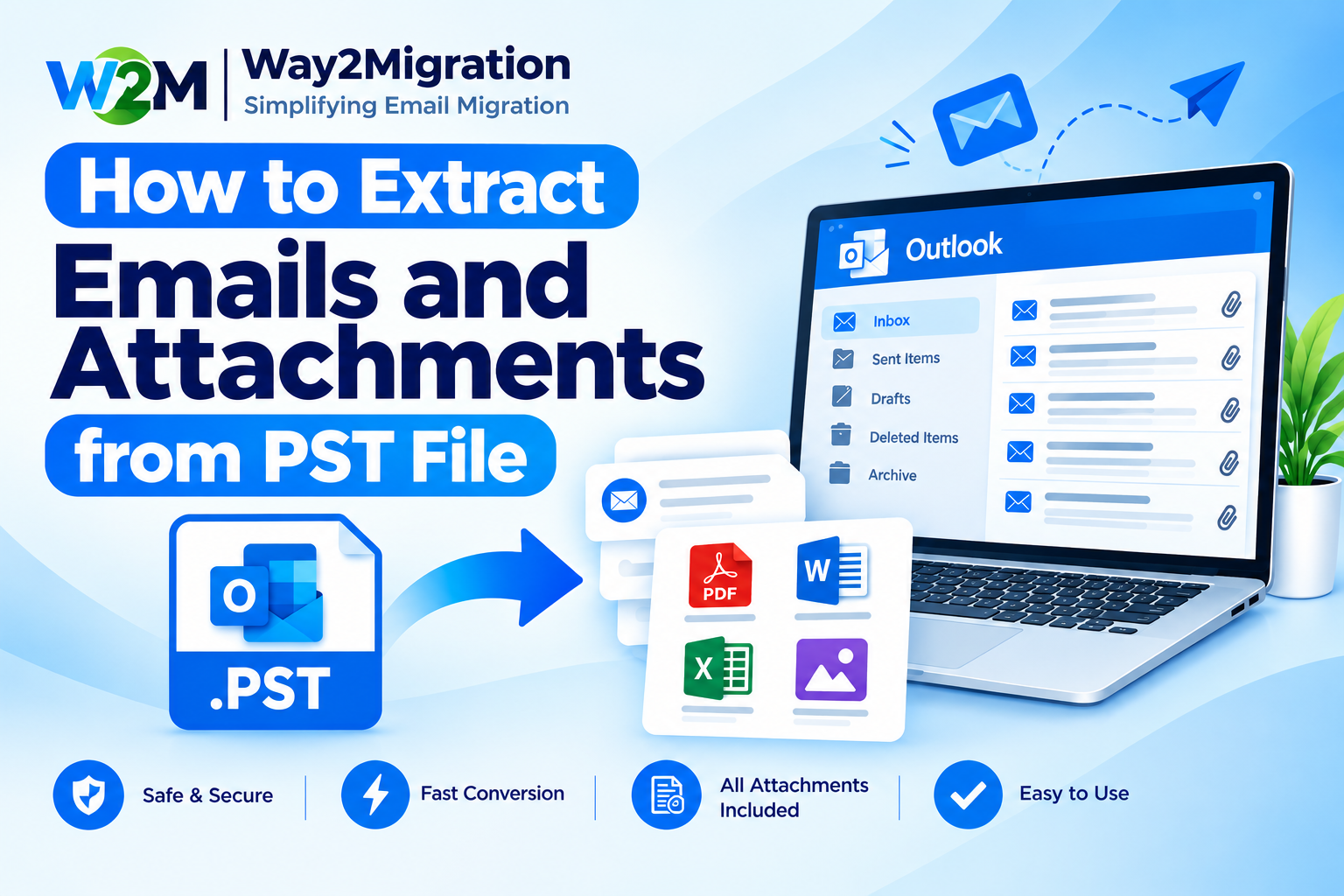
An Outlook PST file can contain years of important emails, attachments, contacts, and other mailbox data. When you need to access specific messages or save attachments from an old mailbox, extracting the required data from the PST file can become necessary. This is especially useful when moving to another computer, creating a backup, recovering older emails, or organizing archived Outlook data.
Microsoft Outlook allows users to open a PST file and access the emails stored inside it. A PST file can contain email messages along with their attachments, so you can open individual messages and save the required files separately.
In this guide, we will explain how to extract emails and attachments from a PST file using Outlook and what to do when you need to process a large PST archive.
What Is a PST File?
PST stands for Personal Storage Table. It is an Outlook data file used to store mailbox information locally on a computer. Depending on how Outlook is configured, a PST file may contain emails, attachments, contacts, calendars, tasks, notes, and other Outlook items.
PST files are commonly used for email backups, archives, moving mailbox data between computers, and storing older Outlook messages.
How to Extract Emails from a PST File Using Outlook
If you have Microsoft Outlook installed, you can open the PST file and access its contents without modifying the original mailbox.
Step 1: Open the PST File
In classic Outlook, go to:
File → Open & Export → Open Outlook Data File
Select the required .pst file from your computer and click Open. The PST file will appear in the Outlook navigation pane, where you can expand folders such as Inbox, Sent Items, Drafts, and custom folders.
Step 2: Find the Required Emails
Open the folder containing the emails you need. Outlook’s search feature can help you locate messages by sender, subject, keywords, or other available information.
If you only need a few messages, you can select them individually rather than processing the complete PST file.
Step 3: Save or Copy the Emails
After finding the required emails, you can copy or move them to another Outlook folder. You can also open an individual message and save it separately if you need an independent copy.
This method is practical when you have a small PST file and only need a limited number of emails.
How to Extract Attachments from a PST File
If the emails contain documents, images, PDFs, spreadsheets, or other files, you can save these attachments separately.
Open an email from the PST file and locate the attachment displayed inside the message. Right-click the attachment and select Save As. Choose a destination folder and save the file.
You can repeat this process for each email that contains an attachment.
Microsoft confirms that attachments are included when Outlook emails are exported to a PST file. Therefore, emails imported from a PST can also contain their associated attachments.
Can You Extract All Emails and Attachments at Once?
Outlook is convenient for manually accessing individual emails and attachments, but extracting a large number of messages and attachments one by one can be time-consuming.
For example, if a PST file contains thousands of emails with hundreds or thousands of attachments, manually opening every message and saving each file may not be practical.
In such situations, a dedicated PST extraction or PST converter tool can be useful. Depending on the software, it may allow users to scan the PST file, select specific folders or mailbox items, and extract email data or attachments in a more organized way.
Before using any third-party tool, make a backup copy of the original PST file. This helps protect the source data if an unexpected error occurs during processing.
What If Outlook Cannot Open the PST File?
Sometimes a PST file may not open correctly because of file corruption, access problems, an unsupported setup, or other technical issues.
First, verify that the PST file is accessible and that you have permission to access its location. You can also try opening the file again through Outlook’s Open Outlook Data File option.
If the file is damaged or Outlook continues to show errors, specialized PST repair or conversion software may be required to recover the mailbox data.
It is also important to work on a copy of the original PST file rather than repeatedly modifying the source file.
Why Extract Emails and Attachments from PST?
There are several reasons why users may need to extract data from a PST file:
- Recover important emails from an old Outlook archive
- Save business documents and email attachments separately
- Move selected emails to another mailbox
- Create an additional backup of important messages
- Organize archived email data
- Extract information before migrating to another email platform
- Access specific emails without importing the entire PST
PST files are also commonly used for backups and moving Outlook data between computers.
Frequently Asked Questions
Can I extract emails from a PST file without Outlook?
A PST file is designed for Outlook, so Outlook provides the most direct way to open and access its contents. If Outlook is unavailable or you need to extract data in bulk, specialized PST extraction or conversion software can be considered.
Does a PST file contain attachments?
Yes. When Outlook emails are exported to a PST file, their attachments are included with the messages.
Can I extract only selected emails from a PST?
Yes. You can open the PST file in Outlook, locate the required folder or messages, and copy the selected emails instead of importing the entire mailbox.
How do I extract attachments from multiple PST emails?
For a small number of emails, attachments can be saved manually from each message. For large PST archives, a specialized PST extraction tool can make bulk processing more practical.
Conclusion
Extracting emails and attachments from a PST file is straightforward when you only need a few mailbox items. Microsoft Outlook lets you open a PST, browse its folders, search for messages, and save individual attachments.
However, large PST archives can make manual extraction slow and difficult. If you need to process a large mailbox, recover specific data, or extract emails and attachments in bulk, a reliable PST converter or extraction tool can provide a more convenient approach.
For more information about Outlook PST files, email migration, and mailbox conversion, explore the resources available on Way2Migration.


